
Summary finding
Buyers lose money in predictable ways: mismatching interfaces (USB-C vs Thunderbolt), over‑buying capacity, ignoring warranty and return terms, choosing incompatible accessories, and paying for features they never use. Below are concrete examples from vendors’ own pages that put a dollar figure next to each mistake.
Mistake 1 — paying for Thunderbolt when your laptop only supports USB‑C
Many docks advertise Thunderbolt connectivity and high charging throughput; buyers with only USB‑C (non‑Thunderbolt) laptops discover later they don’t get the advertised bandwidth or multi‑monitor features. A common dock still sold by its maker, the CalDigit TS3 Plus, lists a retail price of $209.99 and requires a Thunderbolt 3 host for full functionality (it also lists two Thunderbolt 3 ports and Thunderbolt‑3‑class system requirements). Buying that dock for a machine that lacks Thunderbolt can turn a $209.99 purchase into an overpaid accessory that delivers only partial value. us.caldigit.com
Mistake 2 — buying too much SSD capacity instead of buying the right interface
External NVMe drives are expensive at larger capacities. Samsung’s Portable SSD T7 shows manufacturer prices of $274.99 for 1TB, $479.99 for 2TB and $1,094.99 for 4TB on Samsung’s US product pages. If you buy a 2TB or 4TB portable SSD because your laptop lacks a fast internal NVMe slot, you may be paying $200–$800 more than necessary; conversely, if your machine only has slower USB 2.0 ports you will not see the T7’s peak 1,050 MB/s speeds and you’ve effectively paid a premium for a performance level you can’t use. samsung.com
Mistake 3 — buying a webcam that requires USB 3.0 for 4K but expecting 4K over USB‑A on older laptops
Logitech’s BRIO 4K lists 4K@30fps capability but explicitly notes that USB 3.0 (or better) is required for 4K operation; its published datasheet also lists a price point (historically $199 on Logitech material). If you attach that webcam to a laptop with only USB 2.0 ports or a cheap USB hub you will get lower resolution or frame rate — effectively paying ~two hundred dollars for a capability you cannot use. secure.logitech.com
Mistake 4 — choosing the wrong keyboard form or ecosystem and paying for adapters or replacements
Keyboards are frequently chosen by aesthetics or perceived prestige rather than compatibility. Apple’s Magic Keyboard with Numeric Keypad is listed at $129 on Apple’s store; it uses Bluetooth and a Lightning/USB cable for pairing and is optimised for Mac modifier keys. If a buyer purchases that keyboard for a Windows‑first setup and then pays for adapters, remapping software, or replacement keyboards, the total cost quickly exceeds the $129 initial outlay on the Apple page. The core error is ecosystem mismatch: paying a premium for a device optimised for a different platform. apple.com
Mistake 5 — ignoring warranty and repair terms
Warranty length and what it covers vary and can be material to total cost. CalDigit’s TS3 Plus lists a 2‑year limited warranty on its product page; Logitech’s BRIO datasheet lists a 3‑year limited hardware warranty. Samsung’s product and distribution materials show multi‑year warranties for their SSD ranges (MSRP and warranty sheets indicate a multi‑year warranty on SSDs). If you buy an expensive peripheral and later pay for repairs or replacement out of pocket because you assumed a longer warranty, you can end up spending the product price again. Always check the vendor’s warranty period before purchase. us.caldigit.com
Mistake 6 — buying pro‑grade features but not checking host compatibility (microphones and software features)
Microphones and pro audio peripherals often advertise features (multi‑pattern pickup, onboard DSP, platform integrations) that require host‑side software or drivers. Logitech G’s Yeti X is sold as a professional USB microphone, but its advanced features are exposed through vendor software and host compatibility notes on Logitech G pages. If you buy a mic for a laptop that cannot run the vendor software (or if your OS support is limited), you’ll have paid for on‑device or software features you cannot access. Always check the product page for software requirements before paying. logitechg.com
Mistake 7 — mixing wired chargers, cables and connectors without checking power delivery ratings
Some docks or keyboards advertise charging delivery or long battery life but rely on host or cable capability. The TS3 Plus advertises 87W charging on the product page; if your laptop accepts only lower wattage through its USB‑C port you will not get full charging speeds and may need a separate charger. That is an avoidable second purchase that can cost $30–$100 for a proper USB‑C PD charger or an upgraded cable. Check the dock or accessory specifications and your laptop’s PD spec before buying. us.caldigit.com
How to quantify the cost, step by step
Check the vendor product page for the item price and critical constraints (interface, OS, warranty). Use the manufacturer’s own page as the authoritative source: example vendor pages used above include CalDigit for the TS3 Plus ($209.99) and Samsung for the T7 price list ($274.99 for 1TB; $479.99 for 2TB; $1,094.99 for 4TB). us.caldigit.com
Identify the mismatch: is the dock Thunderbolt but the laptop only USB‑C? Is the webcam 4K but the laptop’s ports are USB 2.0? Each mismatch reduces the effective performance and therefore the value of the purchase.
Assign a remediation cost: the vendor dock price (for example $209.99) is the immediate sunk cost; add the price of the item you should have bought instead (for example a simpler USB‑C hub that costs less) or the cost to upgrade the laptop (often hundreds more). For SSDs, compare the price band you purchased against a smaller capacity that would have matched your real usage — the Samsung pricing above gives exact figures to calculate the over‑spend. samsung.com
What to do before you click “buy”
Open the vendor page and copy the system requirements and warranty into your notes; that lets you spot mismatches later. Vendor pages for the products cited here list explicit compatibility and warranty terms. us.caldigit.com
Check the host’s port capabilities in the laptop manufacturer’s spec sheet (Thunderbolt, USB‑C, USB‑A speeds, and PD wattage).
Decide whether you actually need the pro‑grade feature set (4K webcam, Thunderbolt dock, 4TB portable SSD) or whether a mid‑range alternative will cover 90% of use at a fraction of the cost.
Factor in warranty length and the likely cost of replacement if you are outside it: a two‑year versus a three‑year warranty can be worth tens of dollars in expected repair exposure on expensive devices.
Where our catalogue comes in
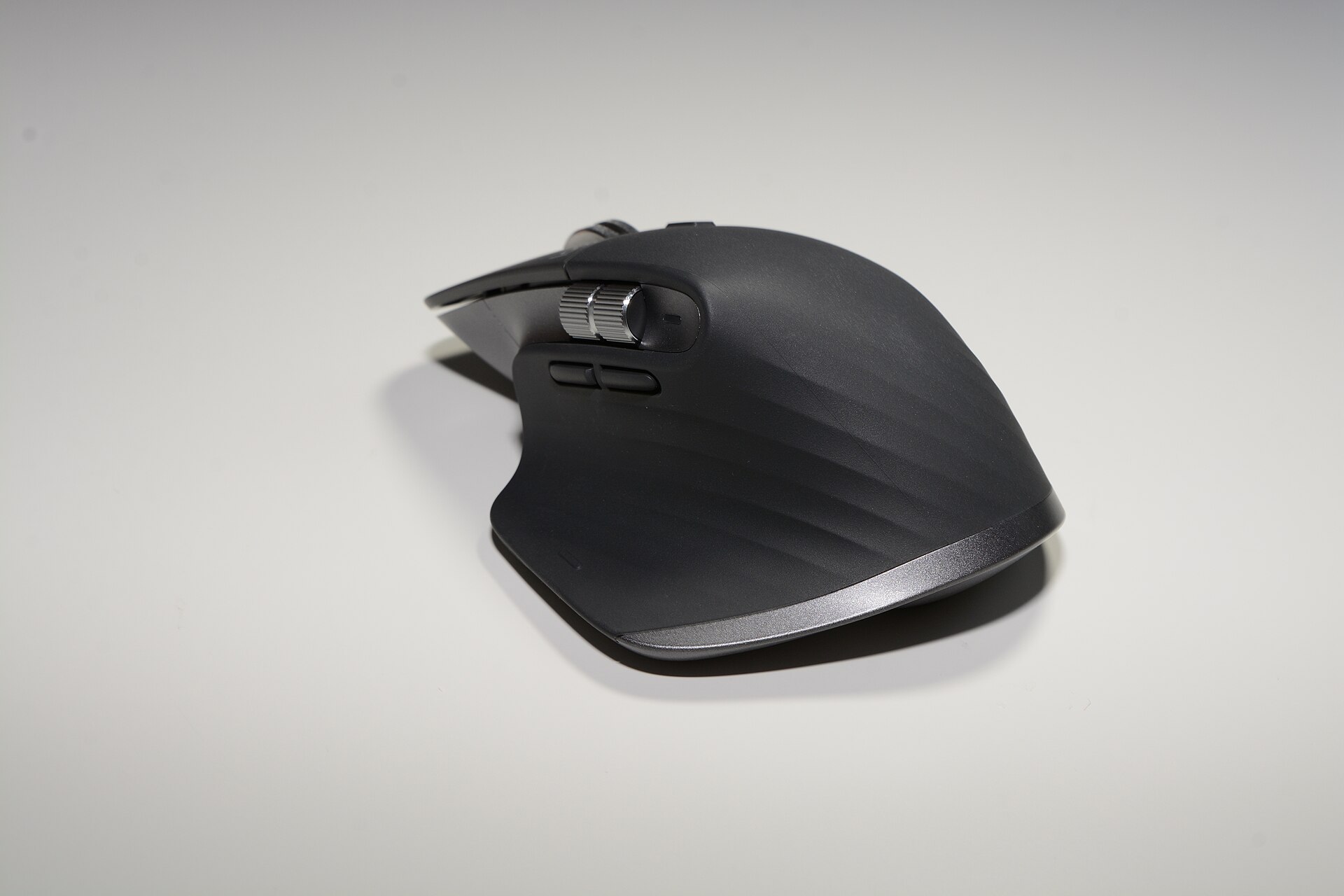
We link model names used in this article to the items we hold in our catalogue: MX Master 3S, Yeti X — Professional USB Microphone, TS3 Plus - Thunderbolt Station 3 Plus, Portable SSD T7 (select capacities), Magic Keyboard with Numeric Keypad, K2 (Version 2) Wireless Mechanical Keyboard, BRIO 4K and MX Keys S. Use the vendor links cited above to check current prices and compatibility notes before purchase. us.caldigit.com
Bottom line
Peripherals rarely fail spectacularly; they fail by delivering less than you paid for. The concrete cost of each mistake is visible on vendor pages: $209.99 for a CalDigit TS3 Plus that won’t give you Thunderbolt features on a USB‑C laptop, $274.99–$1,094.99 for Samsung T7 capacities that you may never saturate with your current ports, and $129 for an Apple numeric keyboard that may require extra adapters on non‑Apple systems. Check the vendor’s product and warranty pages first; it turns uncertain purchases into informed ones. us.caldigit.com